

Review period status in a financial statement
Open a P&L, Balance Sheet, Cash Flow, or Functional P&L Actuals view. When at least one selected accounting source with a known lock state remains open for a visible month and no manual close covers that month, Control shows:- an amber open-lock icon beside the affected period column; and
- an Open period or Open periods control above the statement.
Understand source and manual states
Control keeps two kinds of period-close information separate:
For period indicators and monthly-close readiness, a manual close takes precedence when it covers a month that the
source still reports as open. Control then treats that month as closed and does not show its amber Open period or
Open periods indicator. This precedence changes Control’s readiness state only; it does not change the source lock.
If an entity has several enabled accounting sources, review every source shown in the dialog. A period can remain open
when any relevant source has not closed through that month, unless a manual close covers it.
The accounting-system state can show:
Period-lock information is available for supported accounting integrations, including Procountor, Netvisor, Fortnox,
Visma eEkonomi, e-conomic, Tripletex, Xero, QuickBooks, and Xledger. What each provider considers locked is controlled
by that provider.
Open the period-close details
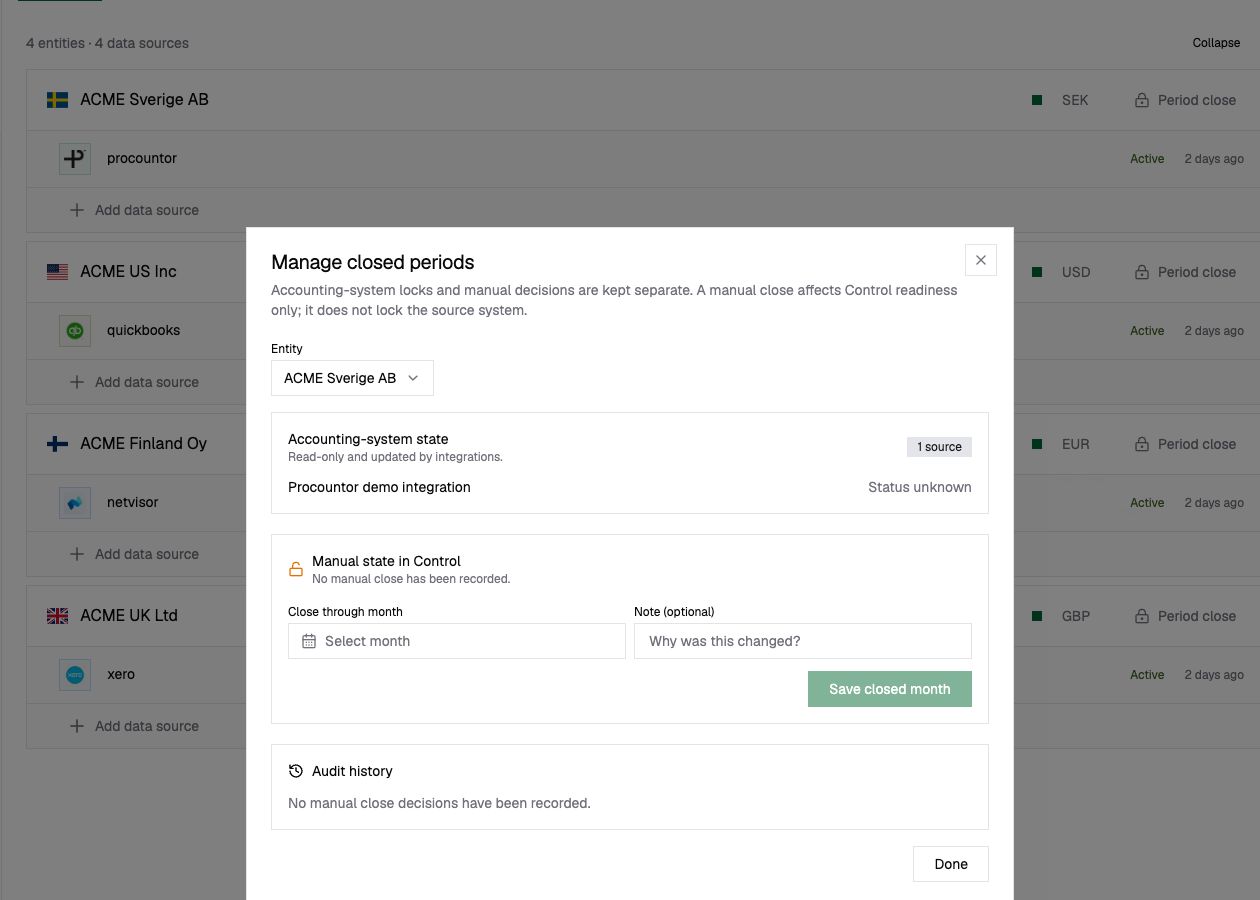
You can open Manage closed periods from either location:- In a financial statement Actuals view, select Open period, Open periods, or Period close above the grid.
- In , select Period close beside an entity.
Record a manual close
Record a manual close only after the responsible finance user has confirmed that the period is ready in Control.- Open Manage closed periods.
- Select the entity.
- Review the Accounting-system state before changing the manual state.
- Under Manual state in Control, choose the final month that should be treated as closed.
- Add an optional note explaining the decision.
- Select Save closed month.
Reopen or remove a manual close
- Open Manage closed periods for the entity.
- Optionally add a note explaining why the state is changing.
- Select Reopen / remove manual close.
Verify the result
After saving or removing a manual close:- Confirm the new value under Manual state in Control.
- Confirm that the change appears in Audit history.
- Return to the financial statement and check the affected period indicator.