

Before you start
You need:- access to the Control workspace you want the client to query;
- an MCP client that supports remote HTTP servers and OAuth; and
- the workspace-specific server URL from in Control.
Connect Claude Code
Use the URL shown in Control:--scope local controls
where Claude saves its configuration; it is not an OAuth permission scope.
If your workspace requires a pre-registered OAuth application, add the client ID shown in Control:
Connect ChatGPT or Codex
The ChatGPT desktop app (which includes Codex) can use Control as an MCP server.- Download and install the ChatGPT desktop app, which includes Codex. If your organization manages software installs, ask your IT team first.
- Sign in, or create an OpenAI account.
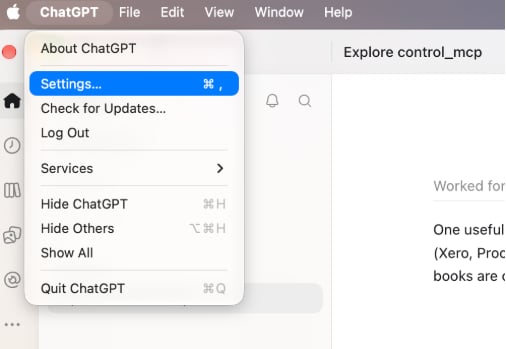
- Open ChatGPT → Settings… from the menu bar (⌘ , on macOS).
- Go to Plugins → MCPs. You can type
mcpin the settings search to find it.
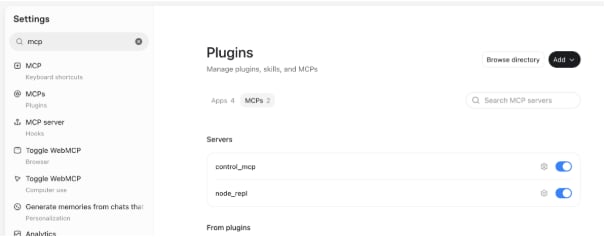
-
Select Add → Add MCP Server in the top-right corner and fill in:
- Select Save. Control-MCP appears in the server list with an Authenticate button.
- Select Authenticate and sign in to Control in the browser window that opens.
Connect a desktop or other MCP client
Add Control as a remote HTTP MCP server. Clients that accept JSON configuration commonly use this shape:How access works
OAuth scopes such as
profile, email, and offline_access identify the user and keep the connection alive. They do
not grant individual financial tools or datasets.
Discover available tools
After connecting, ask the client to refresh its tool list. Control exposes tools for areas such as:- group and entity financial statements;
- cash-flow analysis;
- transaction browsing and evidence;
- accounts, dimensions, layouts, currencies, and accounting settings; and
- Google Sheets and Excel connector setup and synchronization.
tools/list response is the source of truth for the tools available to the current user. Reconnect or refresh
the list after Control adds or changes tools.
Ask useful questions
Start with questions that state the reporting scope and period clearly:- “Show consolidated revenue by month for January through June 2026.”
- “Why did personnel costs change between May and June? Show the supporting transactions.”
- “Compare operating profit for Entity A and Entity B.”
- “Which group account is local account 4000 mapped to?”
Troubleshooting
The client shows no tools or an old tool list
Reconnect the server or ask the client to runtools/list again.
Control cannot choose a workspace
Copy the server URL again from the MCP Server page. It should include?tenant=<tenant-id> for multi-workspace users.
Control rejects authorization when the URL’s ?tenant=<tenant-id> points to a workspace that the signed-in user is
not a member of. Control does not fall back to another workspace you belong to. Re-copy the URL from the MCP Server
page in the intended workspace, or sign in with an account that is a member of that workspace.