> ## Documentation Index
> Fetch the complete documentation index at: https://control-dev.mintlify.site/llms.txt
> Use this file to discover all available pages before exploring further.
# Drill down from a financial statement
> Move from a statement value to its contributing accounts, transactions, and counterparties without losing the reporting context.
# Drill down from a financial statement
Use a statement drilldown to explain what makes up a reported value. Control carries the selected period, entities, accounts, dimensions, currency context, and transaction categories into the drilldown so you can move from a total to its supporting detail.
## Expand rows or drill into a value
Expanding rows and drilling down answer different questions.
| Action | What changes | Use it to |
| -------------------------------------------- | ---------------------------------------------------------------- | ------------------------------------------------------------------------- |
| Select a row chevron | Opens or closes one level of the statement hierarchy | Review groups and accounts already included in the statement layout |
| **Expand accounts** or **Collapse accounts** | Opens or closes the account rows across the statement | Scan the statement at a more or less detailed level |
| **Drill down** | Opens the supporting detail for the selected value cell or cells | Reconcile a displayed amount to accounts, transactions, or counterparties |
Expanding accounts does not open transaction detail. A drilldown always starts from one or more value cells, so the selected reporting period remains part of the investigation.
## Open a drilldown
1. Open a financial statement in **Actuals** and choose the reporting scope you want to review.
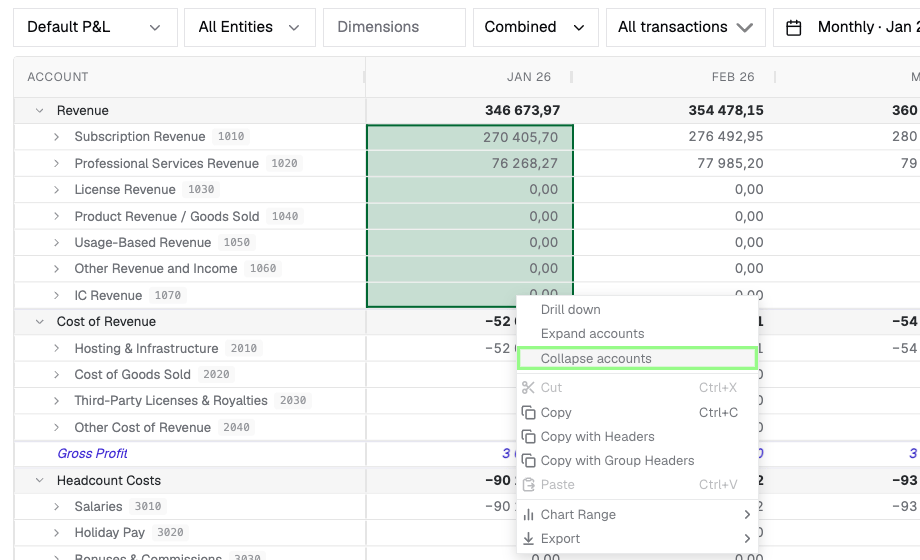
2. Select a value cell. To investigate several values together, drag across the value cells that belong in the same analysis.
3. Right-click the selection and choose **Drill down**. If **Double-click drilldown** is enabled in the grid settings, you can instead double-click a single value cell.
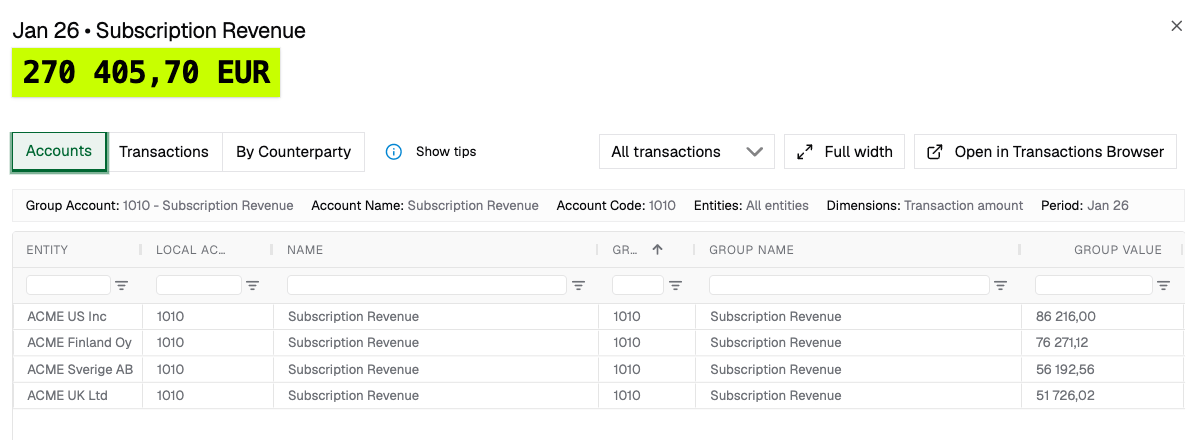
4. Confirm that the amount at the top of the panel matches the selected value or the sum of the selected values.
 When selecting several cells, select non-overlapping values. Selecting both a total and one of its contributing rows
counts the same activity twice in the selected amount.
## Accounts and transactions are separate views
Control provides separate views for the same value — accounts, transactions, counterparties, and formulas — so you can move between the level of detail that answers your question.
When selecting several cells, select non-overlapping values. Selecting both a total and one of its contributing rows
counts the same activity twice in the selected amount.
## Accounts and transactions are separate views
Control provides separate views for the same value — accounts, transactions, counterparties, and formulas — so you can move between the level of detail that answers your question.
 ## Move between detail views
| View | What it shows | How to use it |
| ------------------- | ---------------------------------------------------------------------------------- | --------------------------------------------------------------------------------------------------------------- |
| **Accounts** | Contributing local and group accounts by entity | Identify which account and entity explain the value, then double-click a row for its transactions |
| **Transactions** | Individual entries behind all contributing accounts or the account you selected | Filter dates, descriptions, dimensions, or source details and refresh an isolated stale transaction when needed |
| **By Counterparty** | Matching activity grouped by counterparty, when counterparty analysis is available | Identify the customer, supplier, related party, or unknown counterparty behind the value |
| **Formula** | The operands and operations behind a formula value | Select an operand to continue into its supporting account detail |
The transaction-category selector applies to the drilldown. Keep **All transactions** selected to reconcile the complete displayed value, or narrow the result when you intentionally want to review source transactions, eliminations, or currency translation adjustments separately.
A range containing a formula cannot be combined into one drilldown. Open the formula separately, then select an
operand to continue into account detail.
## Continue in the Transactions Browser
Select **Open in Transactions Browser** when you need more room for grouping, pivoting, saved views, sharing, or export. Control opens the browser with the drilldown's account, entity, period, dimension, and transaction-category scope. Review the filters before changing them so you retain a clear reconciliation point.
Use **Full width** when you want to keep the investigation in the statement while giving the detail grid more space.
## Balance Sheet drilldowns
A Balance Sheet value is cumulative by default, while a transaction list can focus on movement in the selected period. Turn on **Fetch all period transactions** when you need the transaction history through the selected period rather than only the period movement.
Confirm which question you are answering before comparing a transaction total with a Balance Sheet value:
* use the period movement to explain what changed;
* use all transactions through the selected period to support the closing balance.
## Troubleshooting
| Problem | Resolution |
| --------------------------------------------------------- | ---------------------------------------------------------------------------------------------------------------------------------------------- |
| Double-click does not open the panel | Open the grid settings and enable **Double-click drilldown**, or right-click the value and choose **Drill down**. |
| The drilldown total differs from the statement | Restore the original transaction categories and compare the entity, period, dimension, and currency context shown in the summary. |
| A multi-cell selection appears too large | Check whether the selection includes both a subtotal and one of its contributing rows. Select non-overlapping values and reopen the drilldown. |
| Balance Sheet transactions do not equal the closing value | Turn on **Fetch all period transactions** and confirm whether you are comparing period movement or a cumulative balance. |
| One transaction appears stale | Refresh that transaction, then reopen the drilldown and verify the statement value again. |
## Next steps
* [Browse and analyze the result in the Transactions Browser](/product-docs/reports/export-transactions)
* [Investigate an unexpected transaction value](/product-docs/transactions/investigate-transactions)
* [Resolve stale data or a drilldown mismatch](/product-docs/transactions/data-freshness)
## Move between detail views
| View | What it shows | How to use it |
| ------------------- | ---------------------------------------------------------------------------------- | --------------------------------------------------------------------------------------------------------------- |
| **Accounts** | Contributing local and group accounts by entity | Identify which account and entity explain the value, then double-click a row for its transactions |
| **Transactions** | Individual entries behind all contributing accounts or the account you selected | Filter dates, descriptions, dimensions, or source details and refresh an isolated stale transaction when needed |
| **By Counterparty** | Matching activity grouped by counterparty, when counterparty analysis is available | Identify the customer, supplier, related party, or unknown counterparty behind the value |
| **Formula** | The operands and operations behind a formula value | Select an operand to continue into its supporting account detail |
The transaction-category selector applies to the drilldown. Keep **All transactions** selected to reconcile the complete displayed value, or narrow the result when you intentionally want to review source transactions, eliminations, or currency translation adjustments separately.
A range containing a formula cannot be combined into one drilldown. Open the formula separately, then select an
operand to continue into account detail.
## Continue in the Transactions Browser
Select **Open in Transactions Browser** when you need more room for grouping, pivoting, saved views, sharing, or export. Control opens the browser with the drilldown's account, entity, period, dimension, and transaction-category scope. Review the filters before changing them so you retain a clear reconciliation point.
Use **Full width** when you want to keep the investigation in the statement while giving the detail grid more space.
## Balance Sheet drilldowns
A Balance Sheet value is cumulative by default, while a transaction list can focus on movement in the selected period. Turn on **Fetch all period transactions** when you need the transaction history through the selected period rather than only the period movement.
Confirm which question you are answering before comparing a transaction total with a Balance Sheet value:
* use the period movement to explain what changed;
* use all transactions through the selected period to support the closing balance.
## Troubleshooting
| Problem | Resolution |
| --------------------------------------------------------- | ---------------------------------------------------------------------------------------------------------------------------------------------- |
| Double-click does not open the panel | Open the grid settings and enable **Double-click drilldown**, or right-click the value and choose **Drill down**. |
| The drilldown total differs from the statement | Restore the original transaction categories and compare the entity, period, dimension, and currency context shown in the summary. |
| A multi-cell selection appears too large | Check whether the selection includes both a subtotal and one of its contributing rows. Select non-overlapping values and reopen the drilldown. |
| Balance Sheet transactions do not equal the closing value | Turn on **Fetch all period transactions** and confirm whether you are comparing period movement or a cumulative balance. |
| One transaction appears stale | Refresh that transaction, then reopen the drilldown and verify the statement value again. |
## Next steps
* [Browse and analyze the result in the Transactions Browser](/product-docs/reports/export-transactions)
* [Investigate an unexpected transaction value](/product-docs/transactions/investigate-transactions)
* [Resolve stale data or a drilldown mismatch](/product-docs/transactions/data-freshness)