> ## Documentation Index
> Fetch the complete documentation index at: https://control-dev.mintlify.site/llms.txt
> Use this file to discover all available pages before exploring further.
# Dimension mappings
> Standardize cost centers, projects, departments, and other source dimensions.
export const ControlAppLink = ({path, breadcrumb, children}) => {
const link =
{children}
;
return breadcrumb ? {link} : link;
};
Dimension mappings connect local source-system items—such as cost centers or projects—to standardized group dimension items.
## Open dimension mappings
Open Group dimensions.
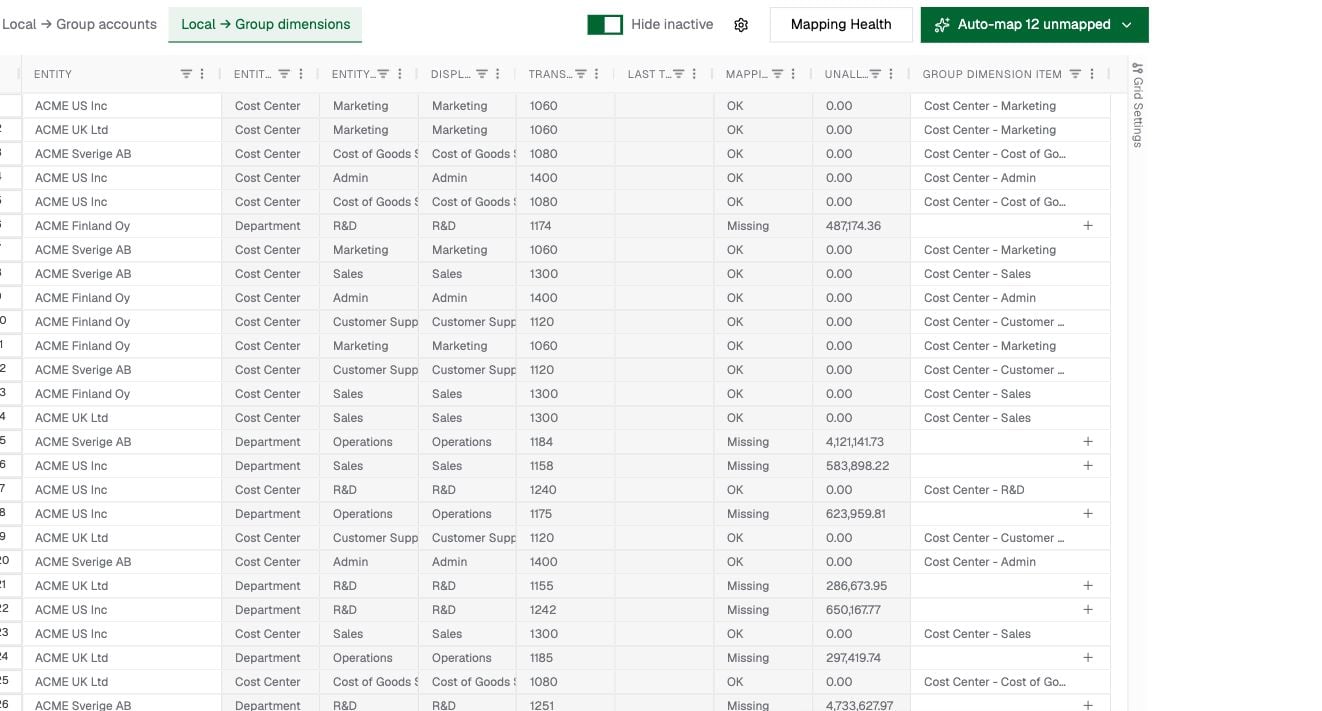
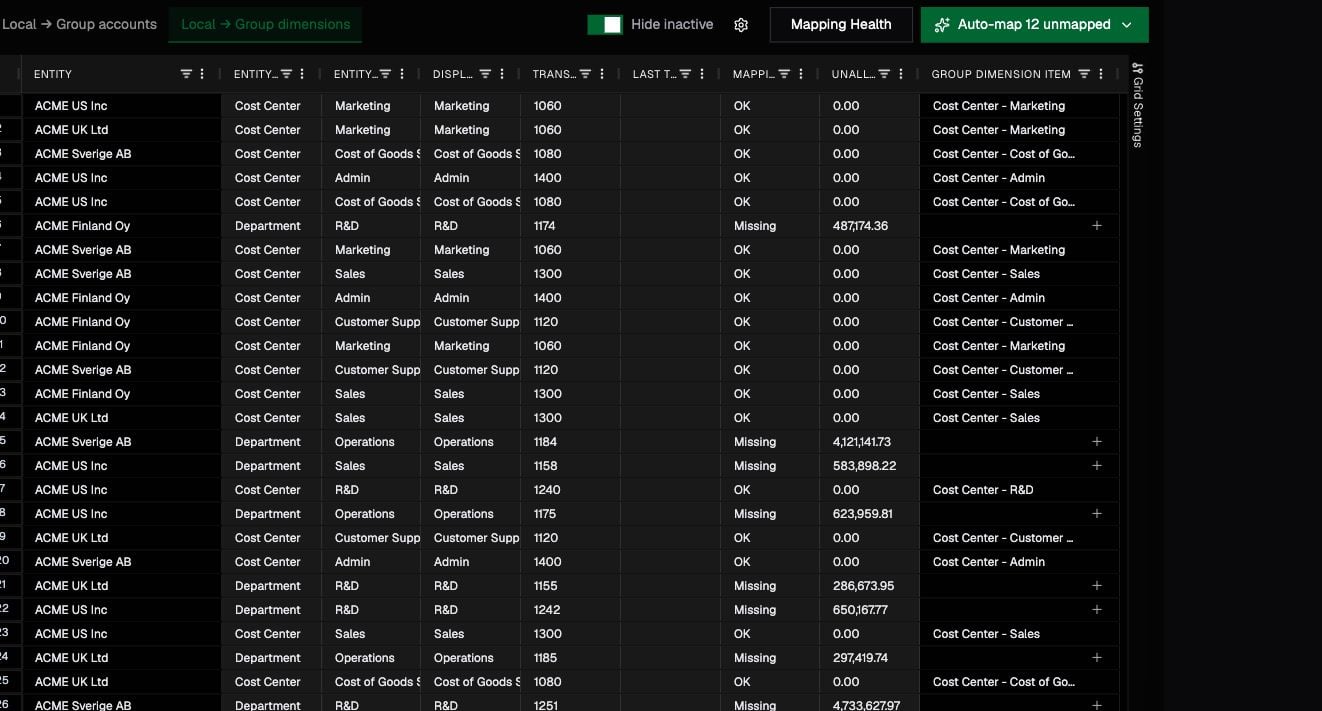
The page supports filters for unmapped rows, transaction activity, and inactive items. Each row represents a local dimension item and its group mapping.
 ## Map an item
1. Find the local dimension item.
2. Confirm which local dimension it belongs to.
3. Select the matching group dimension item.
4. Save the change and verify the mapped group dimension and item.
Do not map a local cost center into a group project merely because the names are similar. The local and group dimension types should represent the same business concept.
## Map new cost centers or projects
After the source-system sync completes, new values appear in the local dimension list. Map each new local item to an existing group item, or create the required group item first.
The UI does not currently support uploading a CSV dump directly into these mapping views.
## Use AI-assisted mapping
If AI mapping is enabled, select rows and choose **Map selected**, or map all currently unmapped items. Review the suggestions before applying them.
**Generate Group Dimensions** can propose a group structure and map local items into it. This is most useful during initial setup; established workspaces should avoid creating near-duplicate group dimensions.
## Check mapping health
Choose **Mapping Health** to find cross-dimension mappings where the local dimension and mapped group dimension do not match. The view summarizes affected entities and visualizes the path from local dimension to local item to group dimension and item.
Resolve these issues before relying on dimension-level comparisons across entities.
## Understand the hierarchy
Open Group dimensions to organize standardized group items.
## Map an item
1. Find the local dimension item.
2. Confirm which local dimension it belongs to.
3. Select the matching group dimension item.
4. Save the change and verify the mapped group dimension and item.
Do not map a local cost center into a group project merely because the names are similar. The local and group dimension types should represent the same business concept.
## Map new cost centers or projects
After the source-system sync completes, new values appear in the local dimension list. Map each new local item to an existing group item, or create the required group item first.
The UI does not currently support uploading a CSV dump directly into these mapping views.
## Use AI-assisted mapping
If AI mapping is enabled, select rows and choose **Map selected**, or map all currently unmapped items. Review the suggestions before applying them.
**Generate Group Dimensions** can propose a group structure and map local items into it. This is most useful during initial setup; established workspaces should avoid creating near-duplicate group dimensions.
## Check mapping health
Choose **Mapping Health** to find cross-dimension mappings where the local dimension and mapped group dimension do not match. The view summarizes affected entities and visualizes the path from local dimension to local item to group dimension and item.
Resolve these issues before relying on dimension-level comparisons across entities.
## Understand the hierarchy
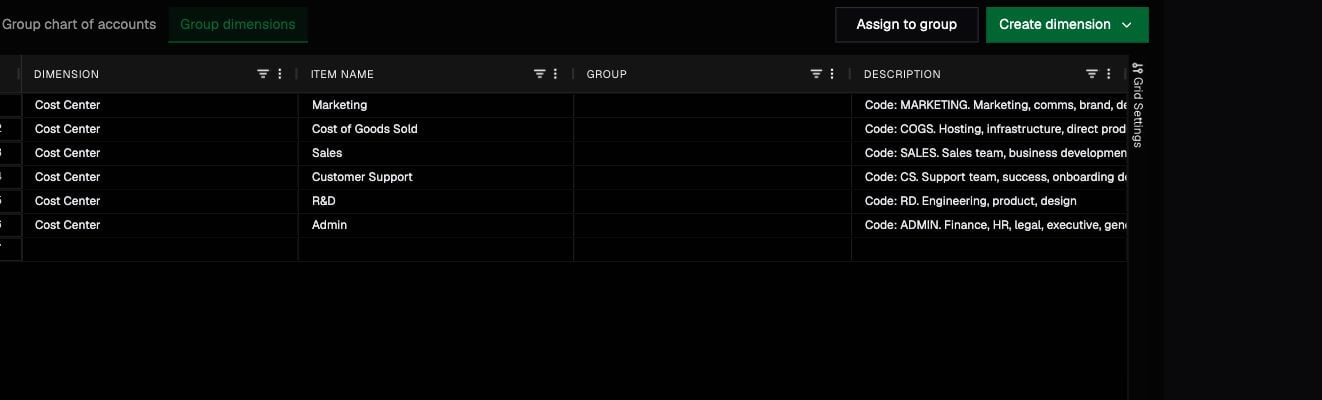
Open Group dimensions to organize standardized group items.
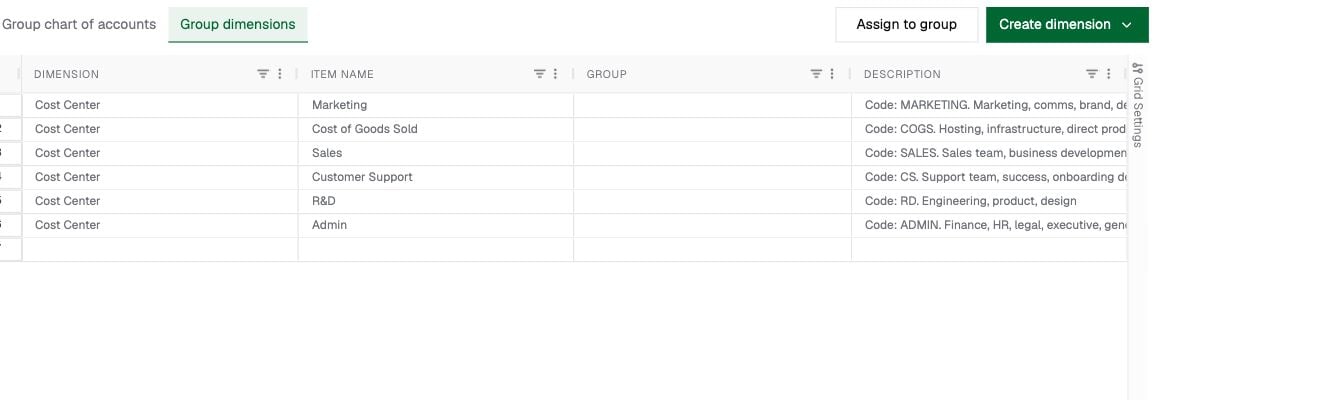
 The **Group** column stores an item's direct parent. Report pickers follow those parent relationships to assemble the complete tree. For example, an item can roll up through `Sales → Commercial → Total company`, even though the table only shows its immediate parent.
Rows without a parent are top-level items. Moving an item to another parent changes where it appears in hierarchical selectors and rollups; it does not change the local-to-group mapping.
Text in parentheses has no special technical meaning. It is part of the name received from the source system unless your team deliberately uses it as a naming convention.
## Troubleshooting
### A new item is not visible
Confirm that the source sync completed, inactive items are not hidden, and you are viewing the correct entity.
### A report filter returns unexpected values
Check both levels:
1. The local item maps to the intended group item.
2. The group item sits under the intended parent in the group hierarchy.
The **Group** column stores an item's direct parent. Report pickers follow those parent relationships to assemble the complete tree. For example, an item can roll up through `Sales → Commercial → Total company`, even though the table only shows its immediate parent.
Rows without a parent are top-level items. Moving an item to another parent changes where it appears in hierarchical selectors and rollups; it does not change the local-to-group mapping.
Text in parentheses has no special technical meaning. It is part of the name received from the source system unless your team deliberately uses it as a naming convention.
## Troubleshooting
### A new item is not visible
Confirm that the source sync completed, inactive items are not hidden, and you are viewing the correct entity.
### A report filter returns unexpected values
Check both levels:
1. The local item maps to the intended group item.
2. The group item sits under the intended parent in the group hierarchy.